

Here you will find a free php scripts, php resources, php tutorials, web resources , jquery
Here you will find a free php scripts, php resources, php tutorials, web resources , jquery
Here is solution how to access php web service in dot net windows application(Hello world application)
Please make little donation if you are like my hard work
- Create new folder and rename it to "server" on your server space
- ( local user just create in htdocs. )
- Download Nusoap library from
- nusoap it is zip file
- You have to extract the "lib" folder from it and paste to web root(I.E htdocs).
- Now create new php file in sever folder and rename it to "server.php"
- Paste the following code in it.
server.php
//include required class for build nnusoap web service server
   require_once('../lib/nusoap.php');

  // Create server object
   $server = new soap_server();

   // configure  WSDL
   $server->configureWSDL('hello world', 'urn:hellowsdl');

   // Register the method to expose
    $server->register('hello_world',                    // method
        array('name' => 'xsd:string'),                 // input parameters
        array('return' => 'xsd:string'),              // output parameters
        'urn:hellowsdl',                             // namespace
        'urn:hellowsdl#hello',                // soapaction
        'rpc',                                    // style
        'encoded',                              // use
        'Says hello world to client'            // documentation
    );

    // Define the method as a PHP function

    function hello_world($pName) {

      return 'Hello world from, ' . $pName;

    }

  // Use the request to (try to) invoke the service
    $HTTP_RAW_POST_DATA = isset($HTTP_RAW_POST_DATA) ? $HTTP_RAW_POST_DATA : '';
    $server->service($HTTP_RAW_POST_DATA);
1.Open Visual Studio and create Windows Froms Application
(File->New->Project->Windows->Windows Forms Application).
 2.Now Create label (Tools->Label ) name it to "lblname"

3.Now create textbox(Tools->TextBox) renamed it to "Txtname".
 4.Now Create button (Tools->Button) renamed it to "btn_call_web_service_1"

5.Add Web Service Reference( Right click on your project and click on Add service Reference)

6.Service window will open now click on "Advance button located at bottom"

7.Service Reference Setting window will open Click on "Add Web Reference" button at bottom.

8.Now Add Web Reference window will open Enter server url
http://localhost:8080/webservice/nusoap/server/server.php?wsdl and click on "Go"

9.Now the services founds is displayed on window enter name of web service as "hello_world_from_php" and click on " Add Reference " button.

10.Now Double Click on call web service button created on form.
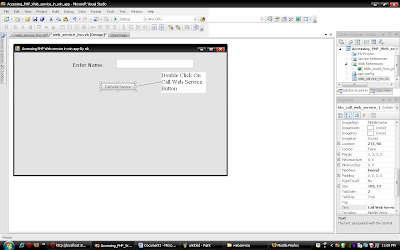
11.Code Window will open
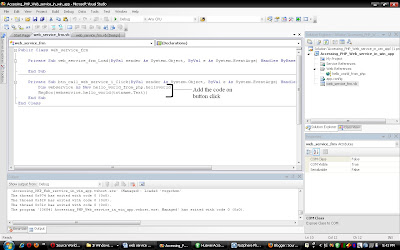
12.Paste the bellow code and run application Your web service is now worked
(File->New->Project->Windows->Windows Forms Application).


3.Now create textbox(Tools->TextBox) renamed it to "Txtname".
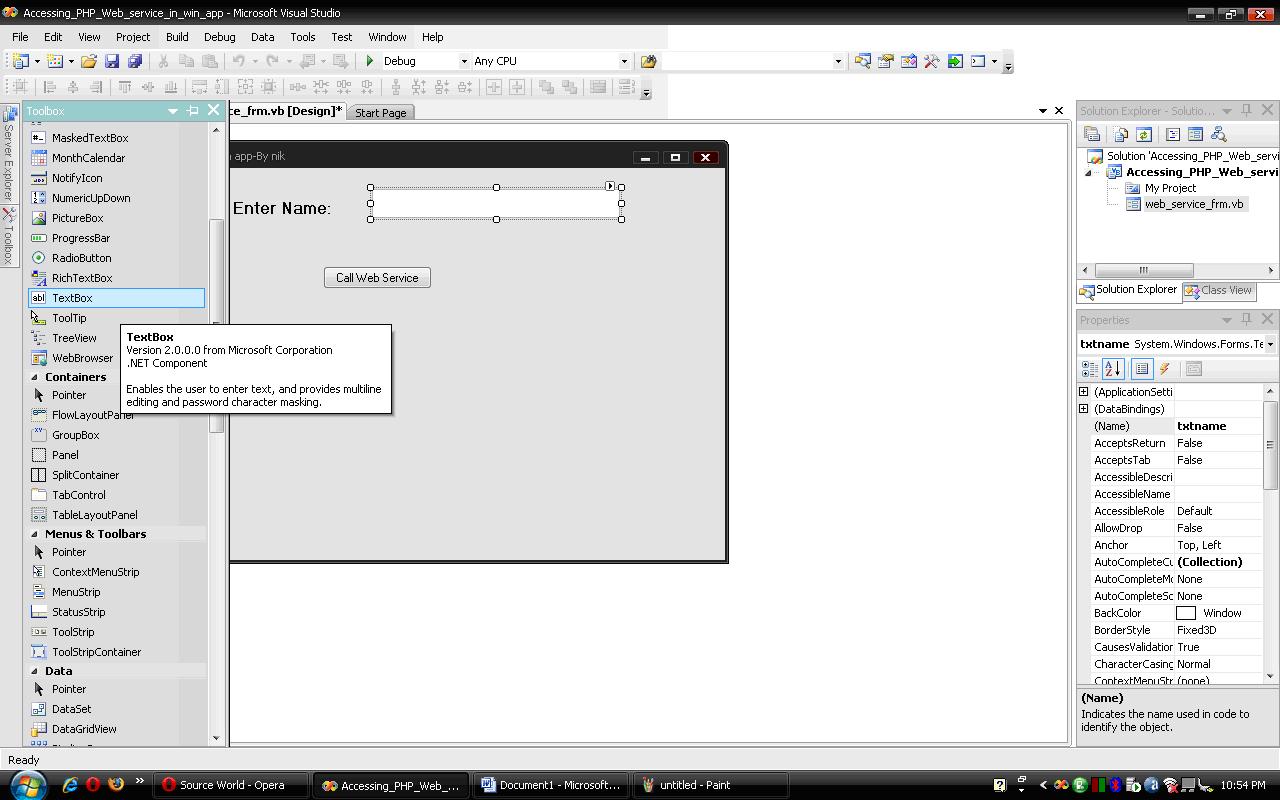

5.Add Web Service Reference( Right click on your project and click on Add service Reference)

6.Service window will open now click on "Advance button located at bottom"

7.Service Reference Setting window will open Click on "Add Web Reference" button at bottom.

8.Now Add Web Reference window will open Enter server url
http://localhost:8080/webservice/nusoap/server/server.php?wsdl and click on "Go"

9.Now the services founds is displayed on window enter name of web service as "hello_world_from_php" and click on " Add Reference " button.

10.Now Double Click on call web service button created on form.
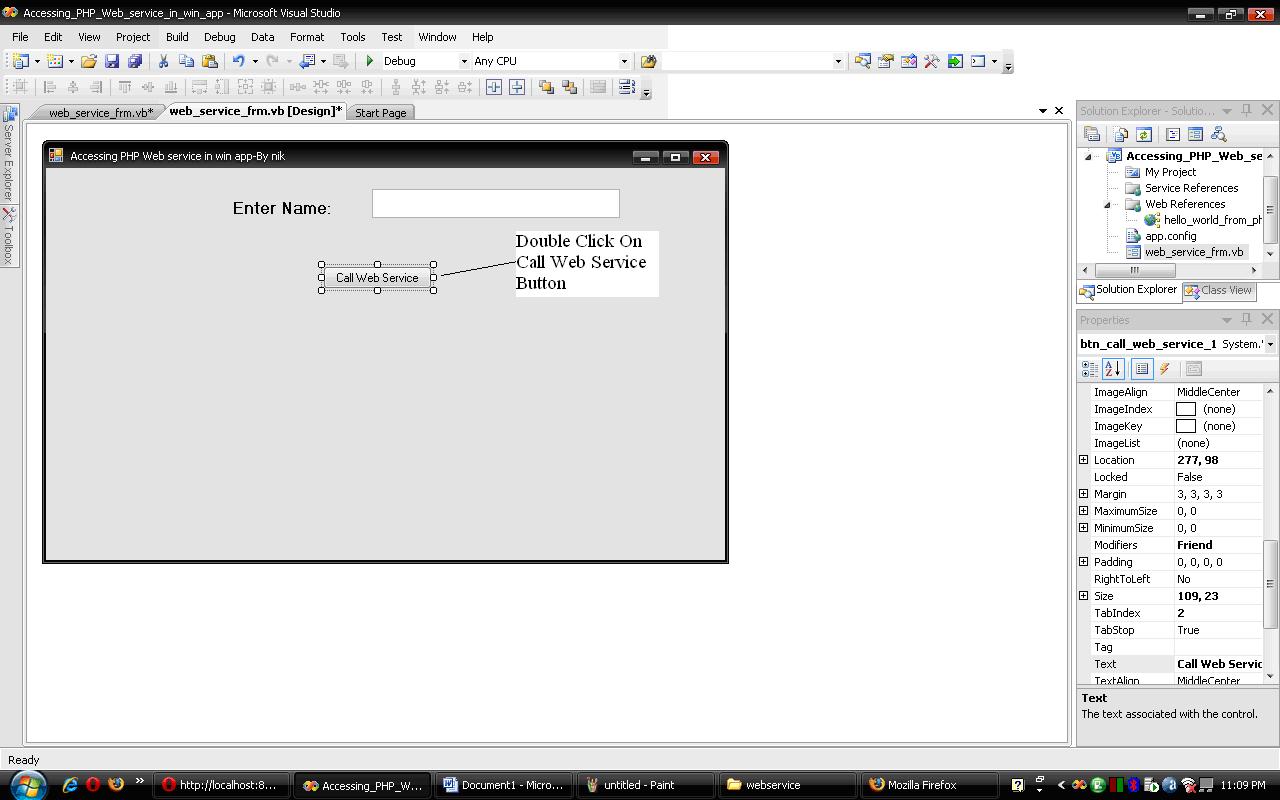
11.Code Window will open
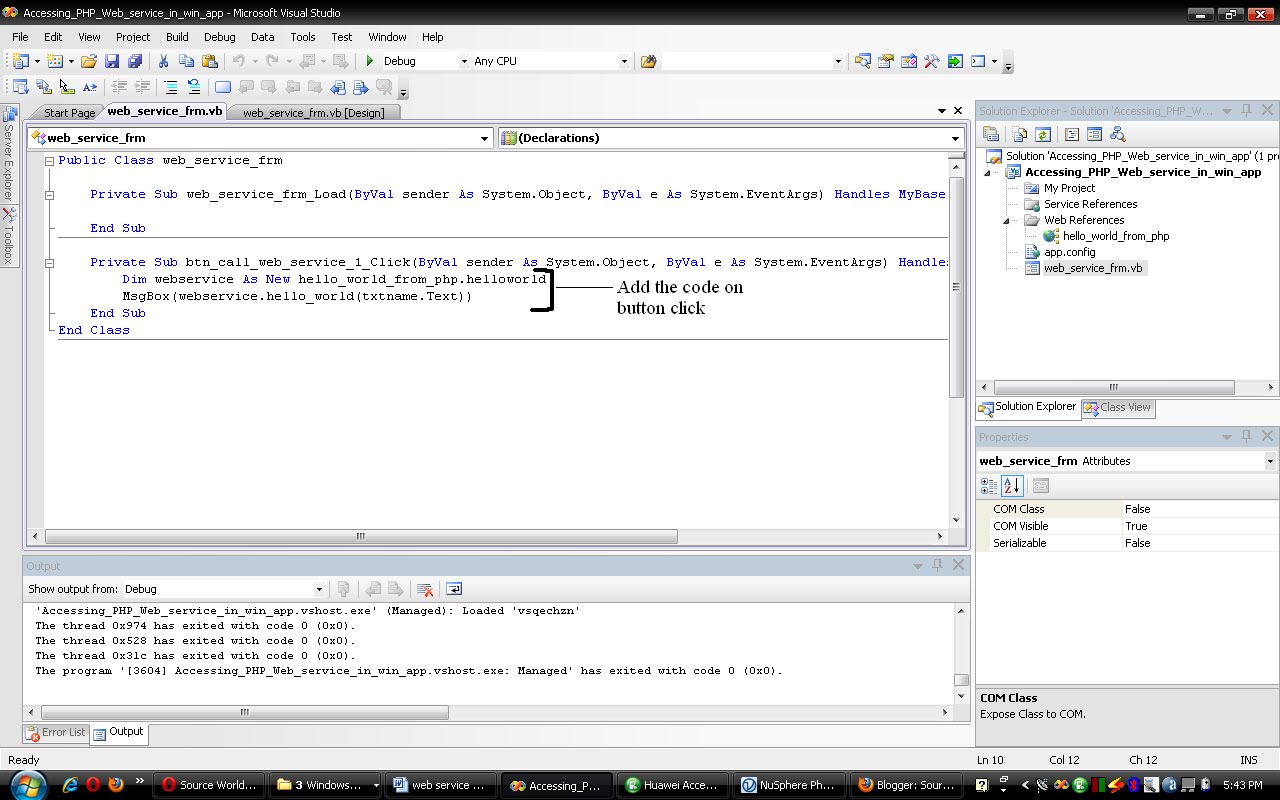
12.Paste the bellow code and run application Your web service is now worked
Dim webservice As New hello_world_from_php.helloworld
  MsgBox(webservice.hello_world(txtname.Text))







15 comments:
thanks very much, it's really help me
That is a nice piece of code.
Very simple, very usefull.
Thanks for sharing.
Thanks! simple is the best^^
Hi,
I read your tutorial and followed the steps and it worked like a charm. I really appreciate this article
execute and result easy, i like. thanks very much. By Andreson
Can anyone upload the ziped project files, as i am a newbee?
Thanks for this post, it helped me a lot
Excellent pieces. Keep posting such kind of information on your blog. I really impressed by your blog.
It seems that I have problems with step 8, It can't find the webpage. Can somebody please help me?
Hello robin how your local server is setup.I have setup my local server as http://localhost:8080/ It might be different in your case .
Ah thank you for your quick answer! And thanks for sharing this great peace of code!
I get an error that I can't fix, It's when I try to add the web reference. Could you help me?
Parse error: syntax error, unexpected $end in /home/mcserver/public_html/server/lib/nusoap.php on line 5743
I think you have to re download library and re-upload to your server.your file might be corrupt.
Thanks.
Awesome, It works now !! thanks
This is AMAZING dude, THANKS A LOT!
Post a Comment